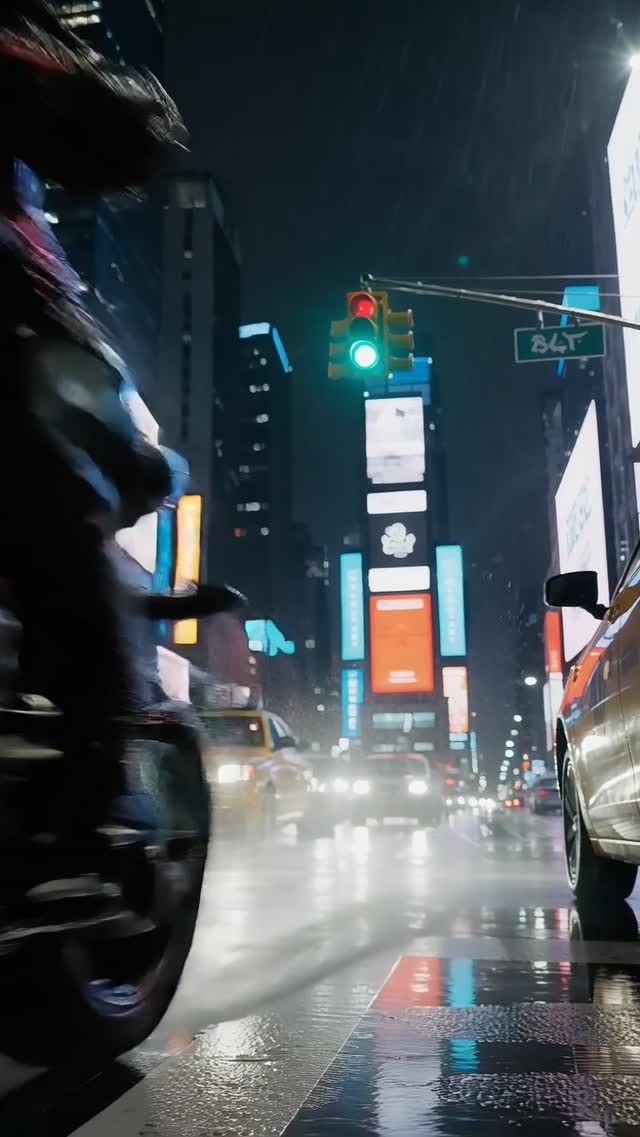
AI Image to Video Generator
Turn photos, artwork, and AI-generated images into moving videos. Upload an image, describe the motion, and choose from multiple AI video models to create your clip online.
ImageVids AI Features
Create AI Videos from Images
Turn your photos, illustrations, and AI-generated images into moving scenes. Direct the action, control camera movement, and add motion to the background using simple text prompts.
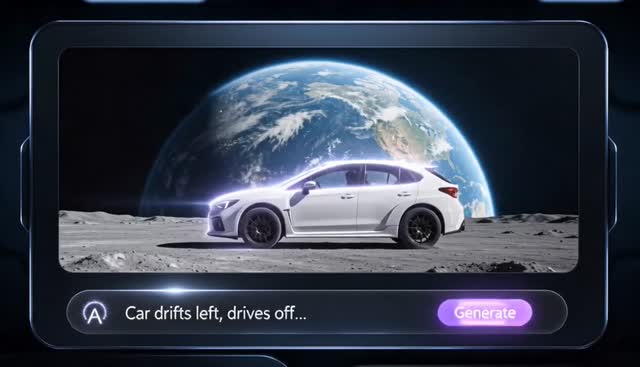
Animate Still Images with Natural Motion
Bring movement to a still image without filming or animating it by hand. Make a person smile or turn their head, add ripples to a lake, or let a character's hair move in the wind. Describe what should happen, and ImageVids AI generates the motion while using your original image to guide the scene's appearance.
Animate people, objects, and backgrounds
Guide movement with simple text prompts
Use your image to guide the scene's appearance
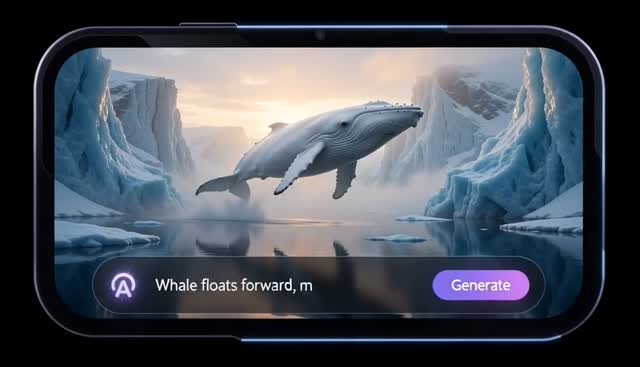
Control Camera Motion for Cinematic Videos
Turn a single image into a moving camera shot. Add a slow zoom toward your subject, pan across a landscape, or create a gentle orbit around a product. Use your prompt to guide the camera's direction, speed, and framing, then experiment with different movements until the shot feels right.
Create zooms, pans, and camera moves
Direct framing and movement with prompts
Refine your shot with different prompts
Free Trial Credits
Try Image to Video AI for Free
Want to see your image in motion before choosing a paid plan? ImageVids AI offers free trial credits for new users. Test a motion prompt, choose an AI model, and generate a short video to see how your idea works. Each generation uses credits based on the model and settings you select.
Free Trial Credits
Start creating with trial credits available to eligible new users. Test image-to-video generation before upgrading.
Pay for What You Generate
Credit costs depend on your selected model and video settings. Review the required credits before starting a generation.
Explore Different Models
Use your available credits to experiment with supported video models and find an approach that suits your image.
HD Export Options
Choose from the video resolutions available with your selected model. Higher-quality exports may require additional credits or an eligible plan.
Watermark-Free Downloads
Eligible paid plans allow you to export videos without watermarks for a cleaner final result.
Commercial Use Options
Create content for marketing, advertising, and client projects under the commercial-use terms of eligible paid plans.
Examples
AI Image to Video Examples
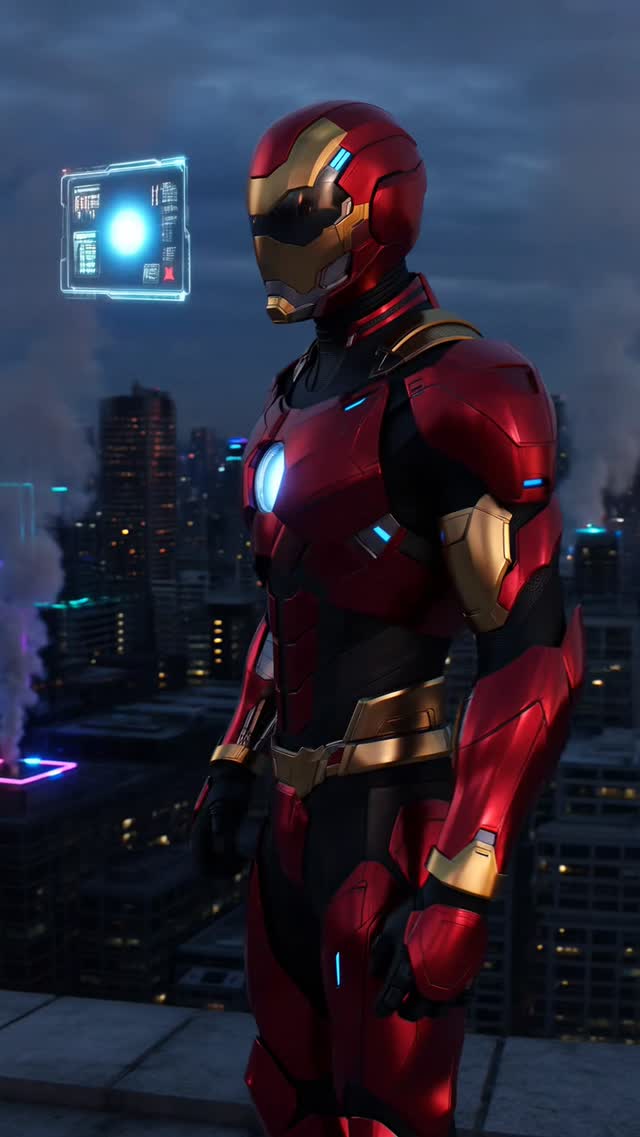
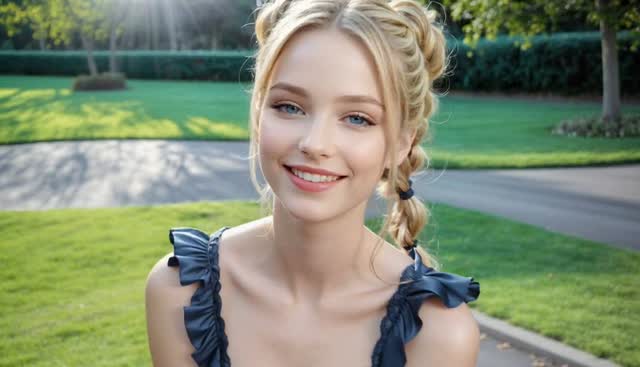
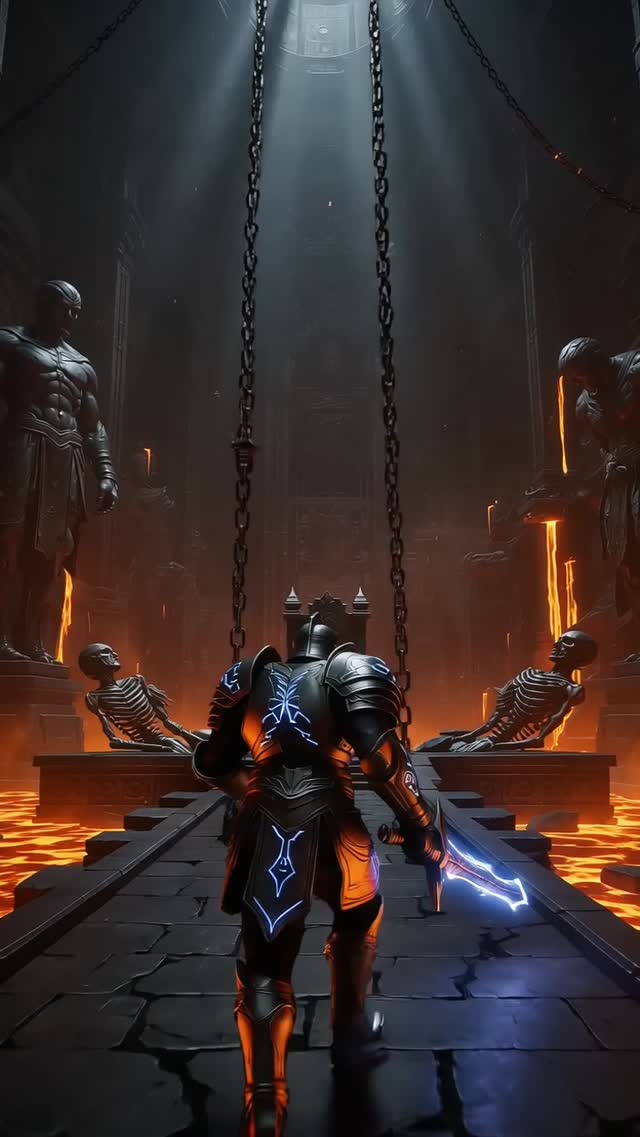
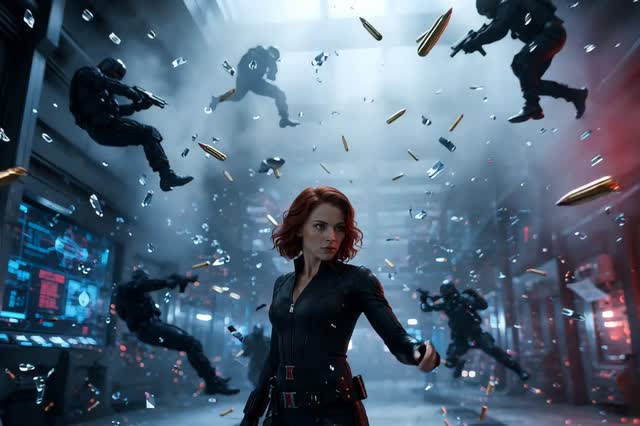
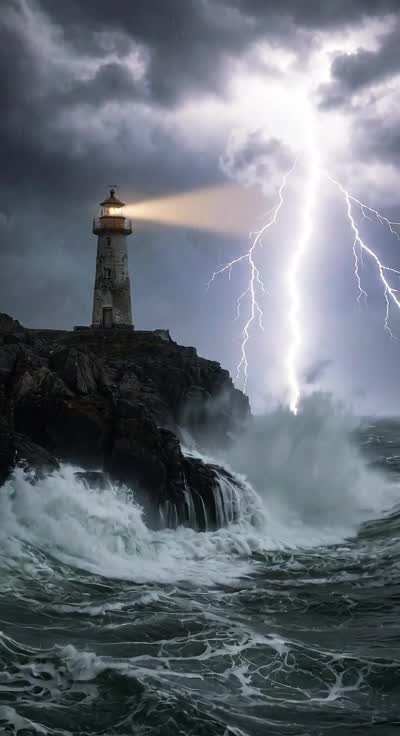
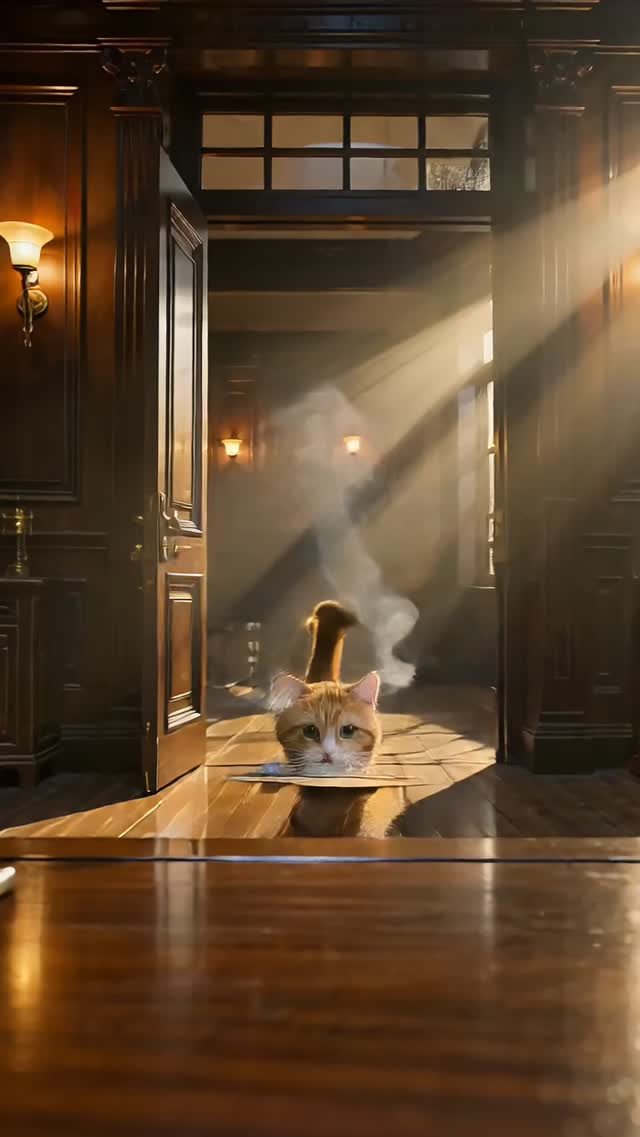
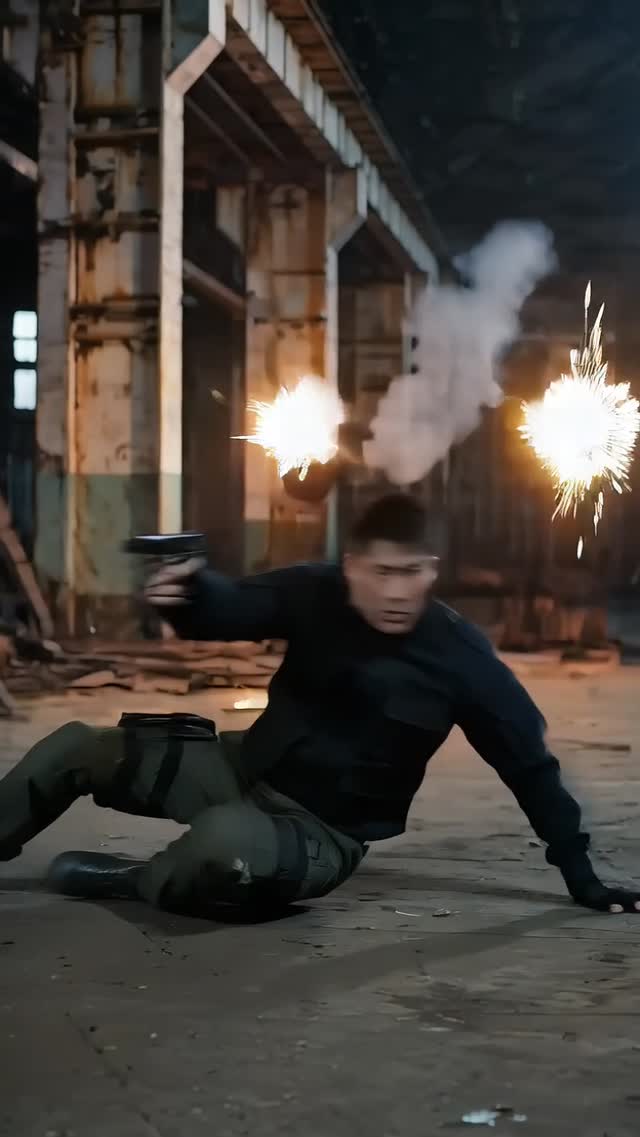
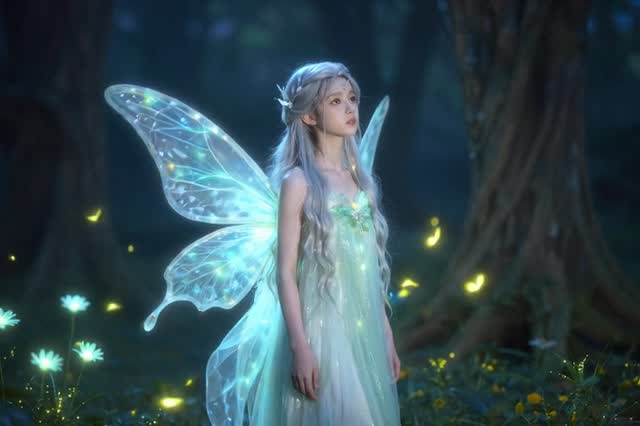
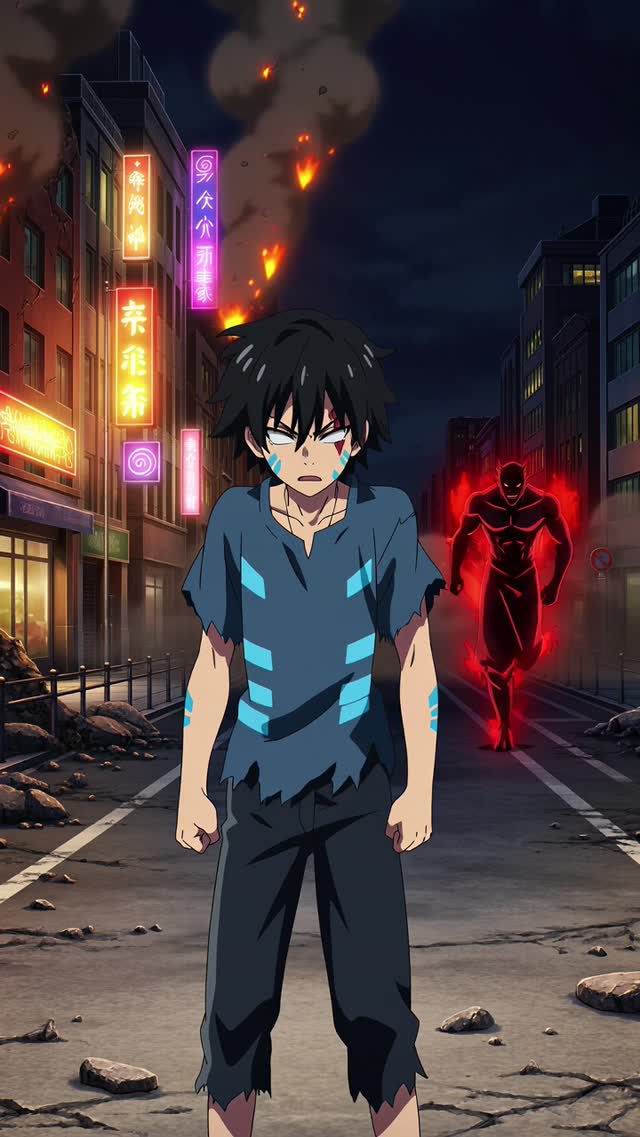
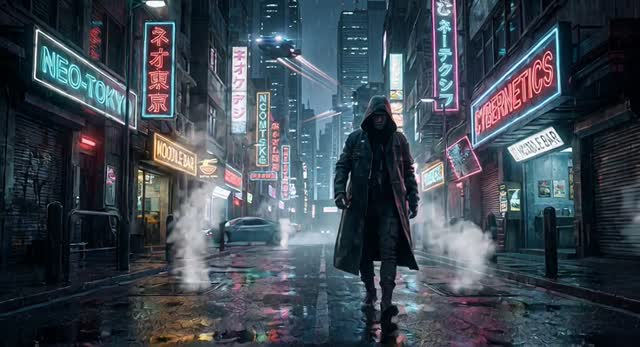
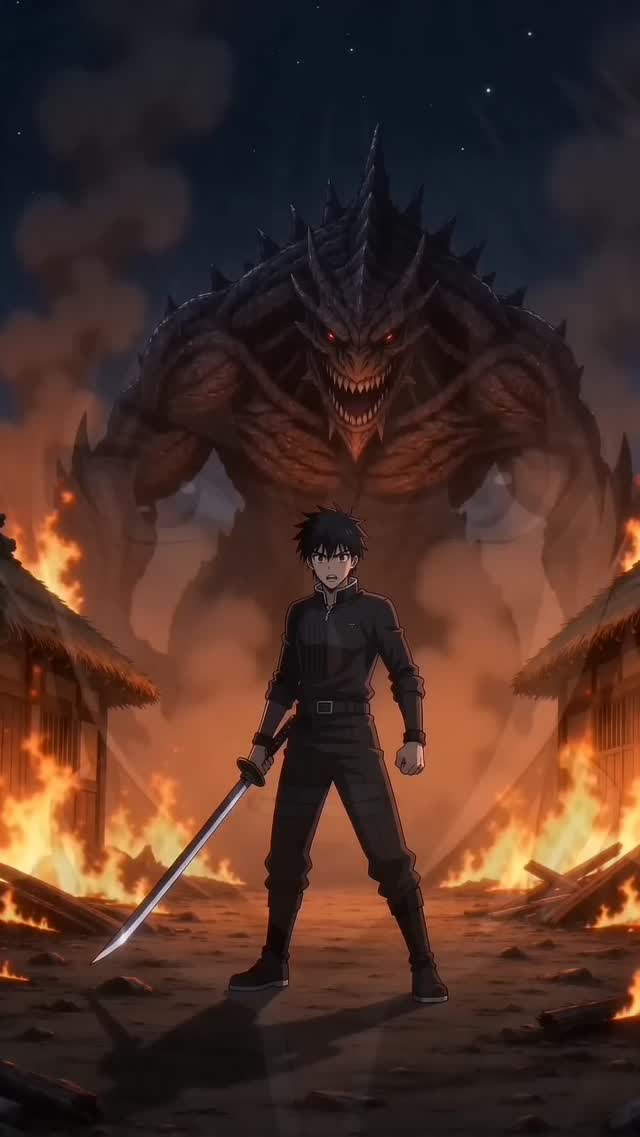
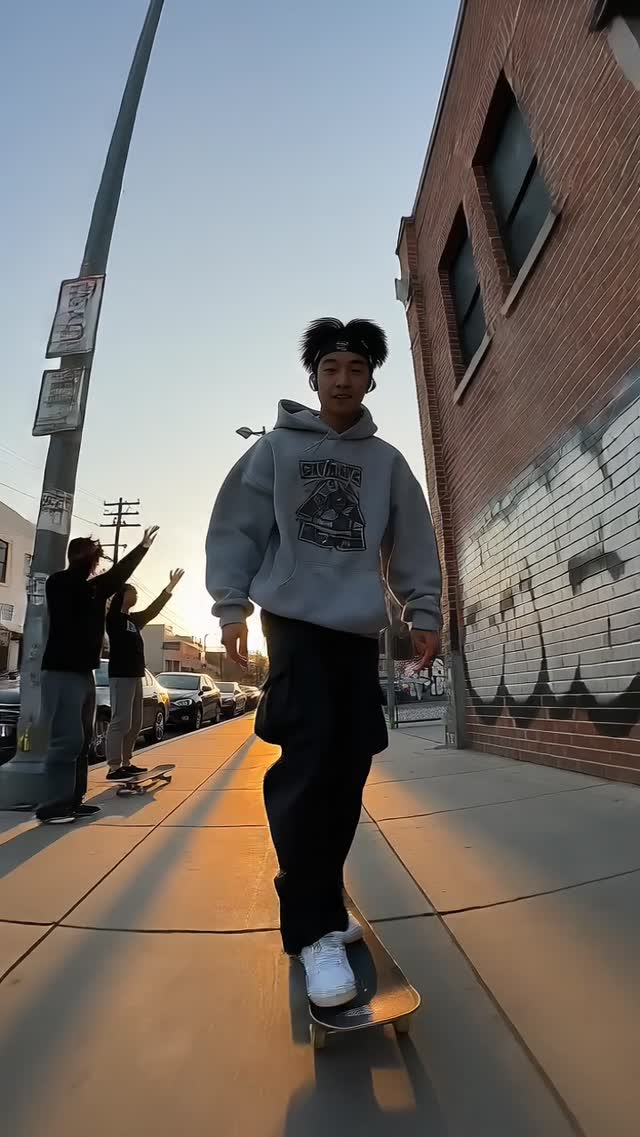
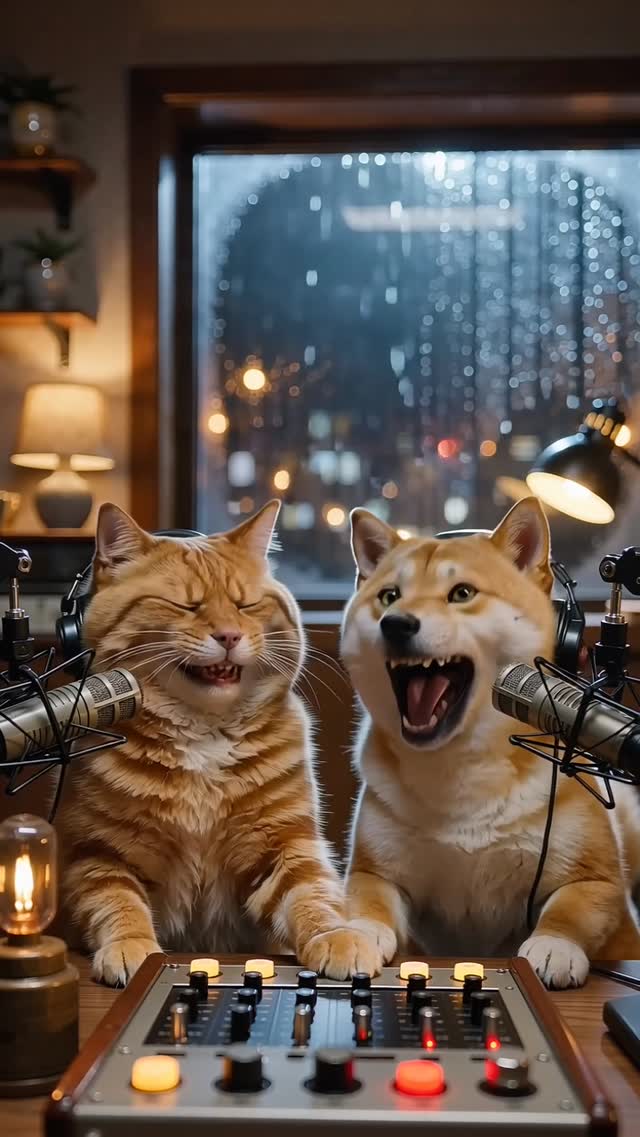
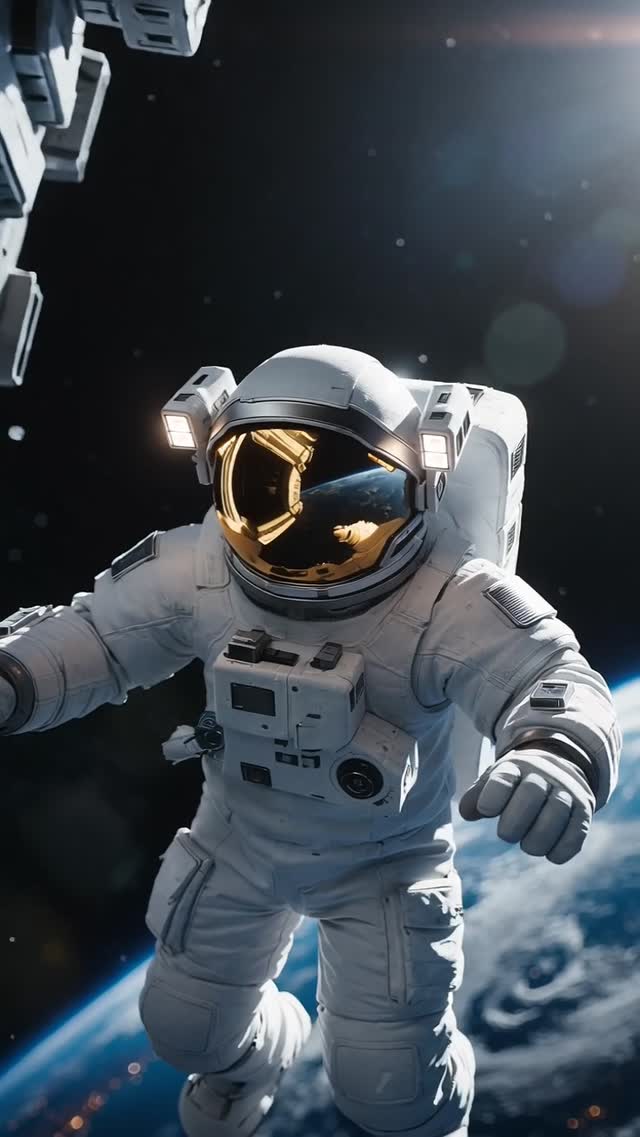
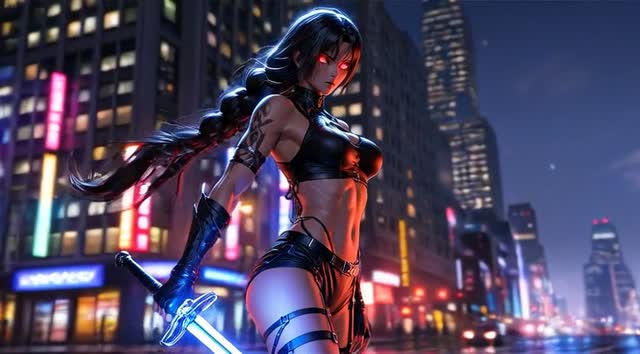
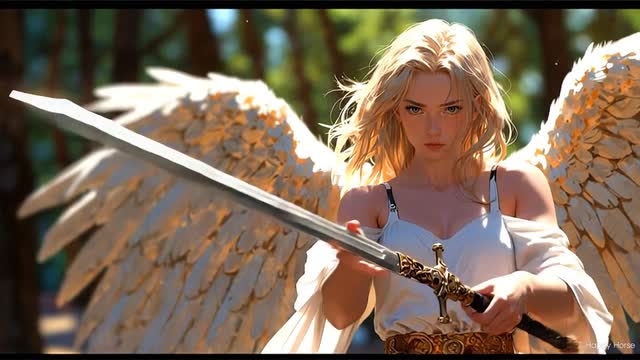
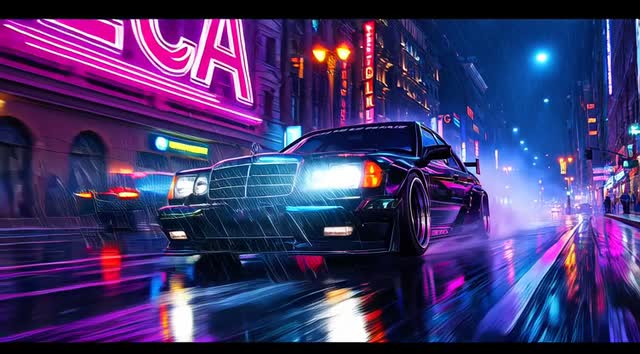
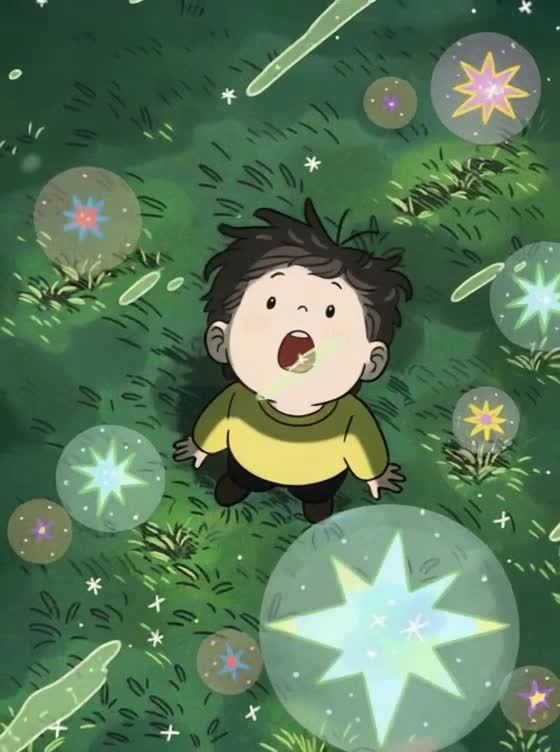
See how still images become moving videos with different prompts and camera effects. Explore portraits, product photos, anime art, and landscapes to compare how subjects, lighting, and backgrounds move in each generated clip.
- Portrait Animation
- Product Image to Video
- Anime Image to Video
- Landscape Animation
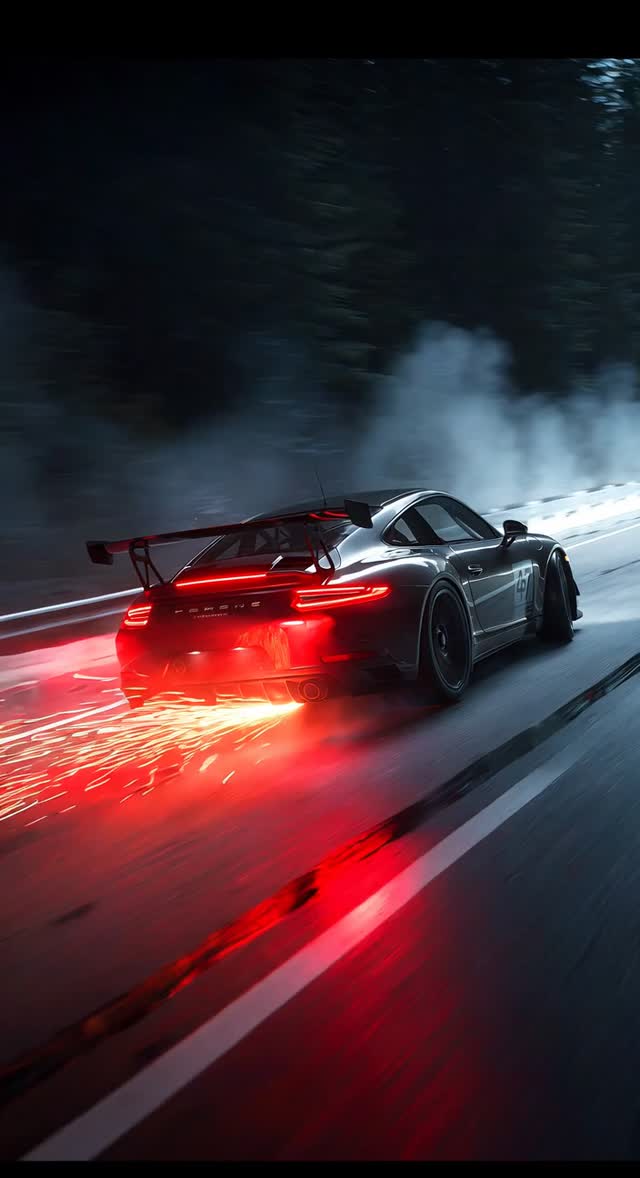
How to Turn an Image into a Video with AI
Create a video from a single image in three simple steps. No animation software or video editing experience is required.
1
Upload Your Image
Choose a JPG, PNG, or WebP image to animate. Start with a portrait, product photo, landscape, illustration, or AI-generated picture. For better results, use a sharp, well-lit image with a clearly visible subject.
2
Describe the Motion and Choose a Model
Write a prompt explaining what should move and how the camera should behave. You might ask for a person to smile, clouds to drift, or a slow camera orbit around a product. Choose an AI video model, then adjust the available duration, resolution, and aspect ratio settings.
3
Generate, Preview, and Download
Click Generate to create your video. Preview the motion, framing, and important visual details. If the result needs improvement, adjust your prompt or try another model. Download the clip when you're satisfied with the result.
Models
Choose the Right AI Video Model
Different AI video models can produce different results from the same image. The best choice depends on the subject, the movement you want, and your output requirements.
ImageVids AI gives you access to models such as Seedance, Kling, Wan, Veo, and Grok Imagine in one workspace. Compare the available options before generating:
- Motion: Are you creating subtle facial expressions, character actions, or dramatic camera movement?
- Video Length: How long does your clip need to be?
- Resolution: What output quality does your project require?
- Audio: Does the selected model support sound generation?
- Credits: How much will the selected settings cost?
For example, a portrait may benefit from controlled facial movement, while a cinematic scene may call for wider camera motion and more complex background animation. Test the same image with different models to compare results before choosing your final version.
 Seedance 1.5 Pro
 Grok Imagine
 Happy Horse 1.0 Seedance 2.0 Fast Seedance 2.0
 ImageVids 1.0 Wan 2.2 Wan 2.5 Wan 2.6 Wan 2.7
 Kling 3.0 Kling 2.6 Kling 2.5 Turbo
 Veo 3.1 Fast Veo 3.1
What Can You Create with Image to Video AI?
From product photography to animated artwork, image to video AI lets you create moving content from pictures you already have. Explore different ways to use ImageVids AI for marketing, storytelling, social media, and personal projects.

Product Ads
Turn product photos into short video ads without arranging another shoot. Add a slow camera orbit around a perfume bottle, shifting reflections across a watch, or a close-up reveal of a handbag. Use the clips to showcase products on ecommerce pages, social media, and promotional campaigns.
Portrait Videos
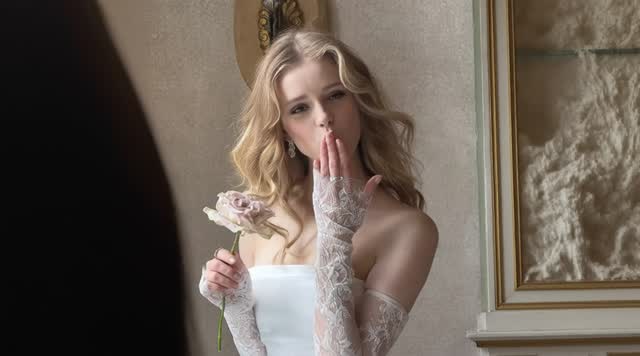
Give portraits natural movement with subtle facial expressions and gentle camera motion. Make someone blink, smile, or turn slightly toward the camera while their hair moves in the breeze. Use controlled movements to create animated profile pictures, personal keepsakes, or short portrait videos.
Anime Videos
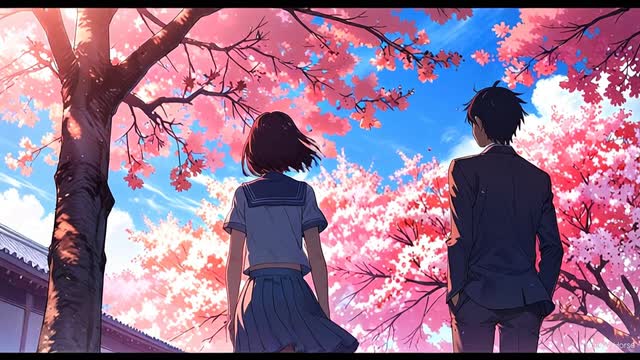
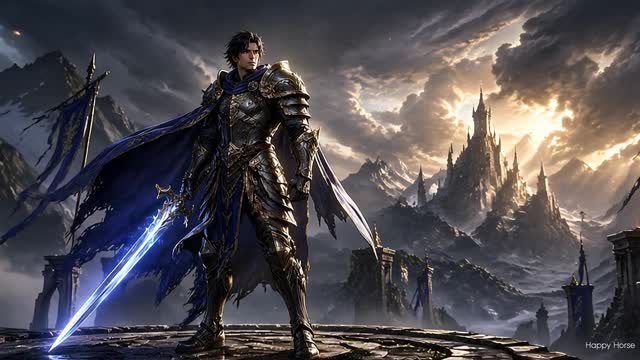
Bring anime characters and digital illustrations into motion while keeping their original visual style. Animate flowing hair, fluttering clothes, or a character's changing expression. Add drifting petals or flickering firelight to create a more expressive scene for character introductions, fan animations, and creative projects.
AI Anime Video Generator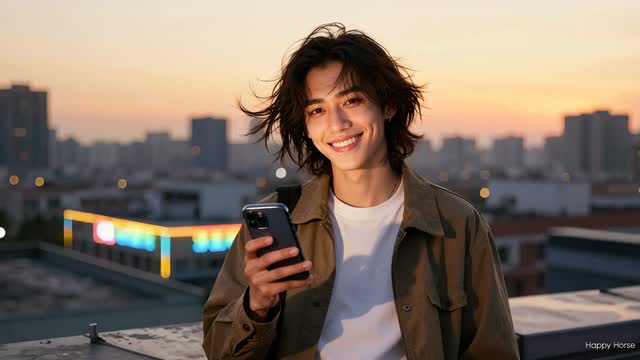
TikTok, Reels, and Shorts
Make short social videos from photos you already have. Turn a fashion portrait into a moving close-up, animate a travel picture, or add motion to a promotional graphic. Choose a vertical format when supported, and prepare clips for TikTok, Instagram Reels, and YouTube Shorts.
Storytelling
Turn storyboards and concept art into moving previews before developing a full scene. Explore how a camera tracks through a hallway, how a character enters a room, or how lighting changes the mood. Image-to-video AI helps you test visual ideas and communicate how a scene should unfold.
Real Estate and Travel
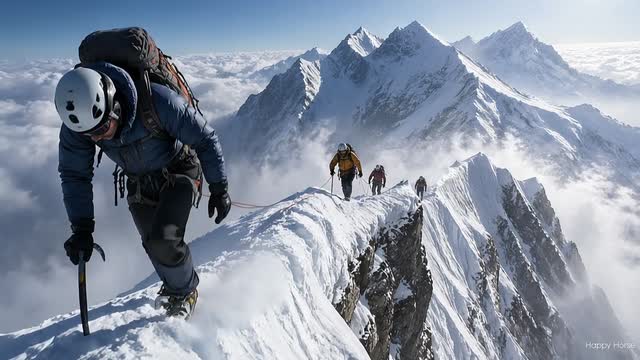
Add camera movement and atmospheric effects to property and travel photography. Create a gentle push-in toward a living room window, clouds moving over a mountain range, or reflections shifting across a lake. Use the clips for property presentations, destination highlights, and website visuals.
Features
Key Features of ImageVids AI
From controlling subject movement to choosing your video format, ImageVids AI provides the tools to guide how your image becomes a moving clip.
Single-Image Video Generation
Create a video from one source image. The AI generates new frames to add movement, so you don't need to prepare a sequence of pictures.
Subject Motion
Describe how people, characters, or objects should move. Create subtle expressions, gestures, or actions that fit the original scene.
Camera Movement
Direct the camera with prompts for zooms, pans, tracking shots, or gentle orbiting movements. Use framing and camera direction to shape the shot.
Prompt-Based Control
Describe the main action, background movement, and atmosphere in plain language. Adjust your instructions to explore different results.
Flexible Aspect Ratios
Choose from the aspect ratios supported by your selected model, with options suited to vertical social videos, square posts, and widescreen clips.
Video Resolution Options
Select the output quality available for your model and plan. Higher-resolution settings can provide more detail for projects that need sharper footage.
Image to Video AI Prompt Examples
A useful image-to-video prompt focuses on movement rather than repeating everything visible in the picture. Describe the subject's action, add camera direction, and mention any background effects that matter to your scene.
Try these examples with your own images and adjust the instructions to fit the result you want.
Cinematic Camera Push
"The camera slowly moves toward the subject, creating a gentle sense of depth. Background elements shift naturally with the camera movement. Soft daylight, subtle shadows, and smooth, steady motion. Keep the original composition and subject details consistent."
Product Video Prompt
"The camera makes a slow orbit around the perfume bottle. Soft studio reflections move across the glass while the background stays clean and minimal. Gentle lighting changes reveal the bottle's shape. Keep the label, proportions, and product colors consistent."
Portrait Animation Prompt
"The woman turns slightly toward the camera and smiles. She blinks naturally as a gentle breeze moves her hair. Soft daylight and a slow camera push-in. Keep her facial features, hairstyle, and clothing consistent with the original photo."
Anime Motion Prompt
"The anime character blinks and looks toward the viewer. Her hair and clothing move gently in the wind as cherry blossom petals drift through the background. The camera slowly pans across the scene. Preserve the original anime linework, colors, and character design."
Why ImageVids AI
Why Choose ImageVids AI?
ImageVids AI brings image-to-video generation and multiple AI models into one online workspace. From your first upload to the final download, you can manage your prompts, compare model outputs, and refine your video without switching between separate generation platforms.
One Workspace for Image-to-Video Creation
Upload an image, write a motion prompt, choose a model, and generate your video in one place. The image-first workflow keeps the process straightforward, whether you're animating a portrait or testing a cinematic scene.
Multiple Models, One Platform
Explore models such as Seedance, Kling, Wan, and Veo without managing a separate account for each provider. Try different approaches to the same image and compare how the models handle movement and visual detail.
Clear Credit-Based Generation
Video generation uses credits based on the model and settings you choose. Review the cost before generating, test ideas with available credits, and select the options that fit your budget and project.
Work with Your Existing Images
Start from photos, product shots, artwork, or AI-generated images you already have. There's no need to recreate your scene from text when you have a picture that captures the composition and style you want.
Create Without an Editing Timeline
You don't need to draw individual frames or manually animate a scene. Describe the action and camera movement in a prompt, adjust the available settings, and generate a clip directly in your browser.
Compare and Refine Your Results
Not happy with the first attempt? Change the motion prompt, adjust the settings, or switch models. Test different versions of the same image to find the movement and framing that best match your idea.
Pricing
Simple Pricing for Your Image-to-Video Projects
Start with free trial credits, then choose a plan based on how often you create videos. Generation costs vary by model and settings, while eligible paid plans offer additional credits, advanced export options, and commercial-use permissions.
Starter
Perfect for individuals who want to start exploring AI image to video generation.
$19.00 /mo
1000 credits/month
- Buy extra credit packs whenever your active subscription needs a boost
- Private image and video generations by default
- Access to one-time credit packs
Creator
A solid plan for creators and freelancers delivering polished work for clients.
$39.00 /mo
3000 credits/month
- Buy extra credit packs whenever your active subscription needs a boost
- Private image and video generations by default
- 5% bonus on every credit pack purchase
Pro
Built for fast-growing creators and teams with heavier production needs.
$79.00 /mo
7000 credits/month
- Buy extra credit packs whenever your active subscription needs a boost
- Private image and video generations by default
- 10% bonus on every credit pack purchase
Studio
Maximum capacity for large-scale workflows and demanding production volumes.
$149.00 /mo
15000 credits/month
- Buy extra credit packs whenever your active subscription needs a boost
- Private image and video generations by default
- 15% bonus on every credit pack purchase
FAQs About Image to Video AI
What is image to video AI?
Image to video AI turns a still picture into a moving video using generative AI. The model uses your image to guide the scene's appearance, then generates new frames based on your motion instructions. You can animate a subject, move the camera, or add motion to the background without recording new footage.
How do I turn an image into a video with AI?
Upload an image to ImageVids AI, describe the movement you want, and choose a video model. Adjust the available settings, then click Generate. Once your clip is ready, preview and download it. You can also change the prompt or model to try another version.
Can I use ImageVids AI for free?
Yes. Eligible new users receive free trial credits for image-to-video generation. Each video uses credits based on the selected model and settings. Additional credits and certain export options are available through paid plans.
Do I need an account to generate AI videos?
You can explore the ImageVids AI website and review available features before signing in. An account is required to generate videos, manage trial credits, and save your creations.
Can I generate a video from just one image?
Yes. You only need one image to get started. Upload a portrait, product photo, landscape, or illustration, then describe what should move. The AI generates additional frames to create a short video based on your picture.
Which images work best for AI video generation?
Sharp, well-lit images with a clearly visible subject generally work best. Avoid heavily blurred pictures, subjects that are too small, or crowded scenes with overlapping details. A clear source image helps the model interpret the subject and generate more controlled movement.
Which AI model should I use for image to video?
Choose a model based on your subject, desired motion, video length, resolution, and available credits. For example, portrait animation may call for subtle facial movement, while a cinematic scene may need more complex camera motion. ImageVids AI lets you compare supported models and test different outputs.
What should I write in an image to video prompt?
Describe what should move and how the camera should behave. For example: "The woman smiles and turns slightly toward the camera as her hair moves in the breeze. Slow camera push-in, soft natural light." Start with one main action, then add background effects or camera details as needed.
How long does it take to generate a video from an image?
Generation time depends on the selected model, video duration, resolution, and current processing demand. More demanding settings may take longer. Once the video is ready, you can preview the result and decide whether to download it or generate another version.
Can I export AI videos without a watermark?
Watermark-free exports are available on eligible paid plans. Trial generations may have watermark or export restrictions depending on the selected options. Check the current pricing details if you need a clean video for publishing.
Can I use AI-generated videos commercially?
Commercial-use permissions are available under eligible paid plans and the applicable service terms. Before using a generated video for advertising, client work, or product promotion, make sure you have the rights to the original image and that your intended use follows the platform's policies.
What's the difference between image to video and text to video AI?
Image-to-video AI starts with an existing picture and uses it to guide the generated scene. Text-to-video AI starts with a written description and creates the visuals without a source image. Image to video is useful when you already have a subject, composition, or art style you want to animate.
Turn Your Images into Videos with AI
Ready to see your picture in motion? Upload an image and create your first AI video with ImageVids AI. Start with free trial credits.
Create Your AI Video